
An AI meeting assistant for project managers is most useful when you treat it as a first draft of the project record, not as the minutes. Let it transcribe and summarise, then spend five minutes after each meeting checking the decisions, action owners, dates and risks it pulled out before anything goes into your project tool.
This guide covers how to choose the right type of assistant, a five-step workflow for project meetings, prompts you can copy, and the mistakes that make AI notes more trouble than they are worth.
What an AI meeting assistant does (and what it doesn’t)
Most AI meeting assistants do the same core jobs. They transcribe the conversation, label who said what, and produce a summary with suggested action items or next steps. Some also let you ask questions about the meeting, jump to moments in a recording, or catch up if you join late.
For a project manager, though, a summary is not the goal. What you need from a meeting is a reliable record of four things:
- Decisions: what was agreed, and who agreed it.
- Actions: what needs doing, by whom and by when.
- Risks and issues: anything that could affect the timeline, budget or scope.
- Open questions: what still needs an answer, and who owns getting it.
An AI assistant can draft all four, but it has no idea which decisions are final, which “we should” comments were ideas rather than commitments, or how today’s discussion affects the rest of your plan. That judgement stays with you. If you already use AI for other admin, as described in How ChatGPT Can Save Project Managers Hours Every Week, the same rule applies: AI drafts, you decide.
Built-in or standalone: choosing the right type
There are two broad options. The first is the assistant built into the meeting platform your team already uses. The second is a standalone notetaker that works across platforms, usually by joining the call as an extra participant. For most small teams, the built-in option is the simpler place to start because it sits inside tools, permissions and billing you already manage.
At the time of writing (November 2026), the main built-in options work like this:
- Google Meet: the “Take notes for me” feature saves notes to a Google Doc in the organiser’s Drive and attaches it to the Calendar event. The notes include a summary and action items, and an optional “Next steps” section lists assigned tasks. It needs an eligible Google Workspace edition or Google AI plan, and it supports one language at a time from a set list. Google’s help page for Take notes for me also notes that summaries can sometimes be incomplete or inaccurate.
- Microsoft Teams: intelligent recap adds AI notes, recommended tasks and speaker timeline markers to a meeting’s recap. According to Microsoft’s admin documentation, users need a Teams Premium or Microsoft Copilot licence, and transcription must be turned on.
- Zoom: AI Companion can generate a meeting summary with next steps. The host receives the summary and controls who gets a copy. Its AI features are off by default, so an admin or host has to turn them on.
Features, plan requirements and even product names change often in this category, so check the current details for your plan before you commit.
Whichever way you go, use this checklist to compare options:
| What to check | Why it matters for a PM |
|---|---|
| Which platforms it works with | If you meet clients on Zoom, Teams and Meet, a single built-in tool may not cover you. |
| Where notes are stored and who can see them | Notes from client or HR meetings need tighter access than stand-ups. |
| Consent and notification controls | Attendees should always know a meeting is being recorded or transcribed. |
| Speaker identification | Action owners are only useful if the tool knows who said what. |
| Export or integration with your PM tool | Copying tasks across by hand cancels out much of the time saved. |
| Language and accent handling | Test it with your real team and real meetings before rolling it out. |
| Cost per seat | Licences often apply per user, so check who actually needs one. |
A five-step workflow for project meetings
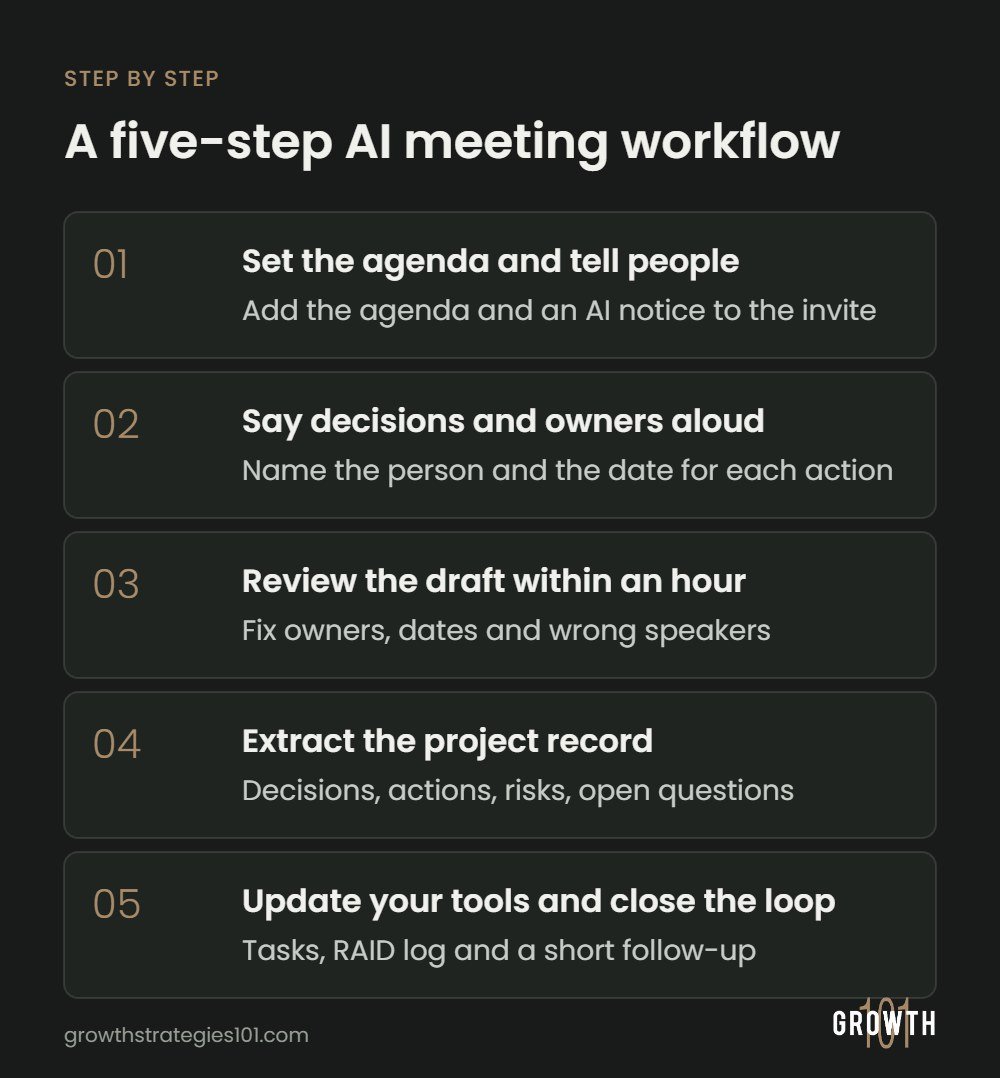
The tool matters less than the routine around it. This workflow suits stand-ups, client check-ins, steering meetings and sprint reviews.
1. Before the meeting: set the agenda and tell people
Put the agenda in the calendar invite, and add a line saying the meeting will be transcribed by an AI assistant. A clear agenda gives the assistant a structure to follow, and the advance notice means nobody is surprised when the recording notification appears.
2. During the meeting: say the important parts out loud
AI notetakers can only capture what is said clearly. When a decision is made, state it: “So we’re agreed, the release moves to the 14th.” When an action is assigned, name the person and the date: “Sam, can you send the revised estimate by Thursday?” This one habit improves the output more than any setting or prompt.
3. Within an hour: review the draft
Read the summary while the meeting is fresh. Check every action item has an owner and a date, fix any misattributed speakers, and remove anything recorded as a decision that was really just an idea. Five minutes here saves a long email thread later.
4. Extract the project record
Pull the confirmed decisions, actions, risks and open questions into a consistent format. If your tool’s summary doesn’t separate these cleanly, run the notes or transcript through one of the prompts in the next section.
5. Update your tools and close the loop
Add actions to your project tool, update the risk or RAID log, and send attendees a short follow-up with the confirmed list. At the start of the next meeting, review the open actions from the last one. Over a few weeks, these confirmed notes also feed straight into your reporting, using a process like the one in How to Write a Project Status Report with AI.
Prompts to turn meeting notes into project updates
If your assistant gives you a transcript or rough notes, these prompts turn them into something you can act on. Only paste meeting content into an AI tool your organisation has approved for that kind of information.
Prompt 1: decisions, actions, risks and questions
You are helping a project manager write up a meeting.
From the notes below, list:
1. Decisions made (quote the wording used where possible)
2. Action items, each with an owner and due date. If either is missing, write "MISSING".
3. Risks or issues raised, with a one-line impact
4. Open questions, with who should answer them
Leave out anything that was only suggested or discussed without agreement.
Notes:
[paste notes or transcript]
Prompt 2: RAID log update
Here is our current RAID log and the notes from today's meeting.
Suggest new or changed entries for Risks, Assumptions, Issues and Dependencies.
For each, give the type, description, owner, and the line in the notes it came from.
Flag anything that conflicts with an existing entry.
RAID log:
[paste]
Notes:
[paste]
Prompt 3: follow-up email to attendees
Write a short follow-up email to the attendees of this meeting.
Include the decisions made, the action items with owners and dates, and the date of the next meeting.
Keep it under 150 words, plain and friendly, with no recap of the full discussion.
Notes:
[paste confirmed notes]
Prompt 4: check against the agenda
Here is the meeting agenda and the meeting notes.
For each agenda item, say whether it was covered, what the outcome was, and whether anything needs to carry over to the next meeting.
Agenda:
[paste]
Notes:
[paste]
The “MISSING” instruction in the first prompt does a lot of work. It makes gaps visible instead of letting the AI guess an owner or a date.
Where an AI meeting assistant helps and where it falls short
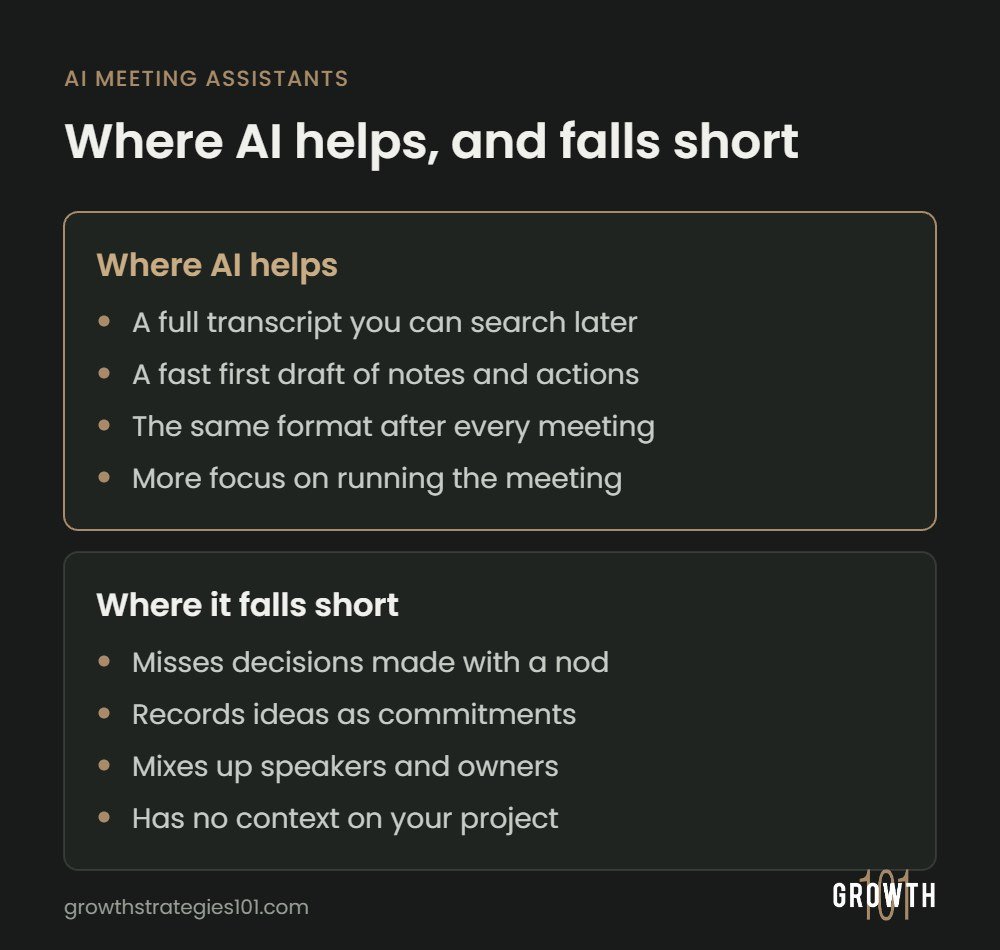
Used well, an AI meeting assistant removes the tension between running a meeting and recording it. You can listen properly, ask better questions and still finish with notes. A searchable transcript also helps when someone asks “what did we actually agree?” three weeks later.
The weak spots are predictable:
- Implied decisions: people often agree with a nod or a quick “sounds fine”. The AI may miss these or record them as tentative.
- Ideas recorded as commitments: “we could try moving the launch” can turn into “the launch will move”.
- Speaker mix-ups: in a room sharing one microphone, or when people talk over each other, actions can be assigned to the wrong person.
- Missing context: the AI doesn’t know your dependencies, your budget or which client relationship is sensitive. It also can’t see a whiteboard or a document nobody read aloud.
- The why behind decisions: the reasoning people share in passing, like why a past approach failed, is easy to lose in a summary. If it matters, write it down yourself.
Consent, privacy and team rules
Recording and transcribing meetings is a trust issue as much as a technical one. A few rules keep it clean:
- Always tell attendees. Mention it in the invite and again at the start of the meeting. Rules on recording conversations differ between countries, and in Australia between states and territories, so check what applies to you, especially when external people attend.
- Decide which meetings are off limits. Performance conversations, HR matters, legal discussions and sensitive negotiations usually shouldn’t be transcribed at all.
- Check who receives the notes. Sharing settings can reach further than you expect. Google’s help page, for example, explains that sending notes to invited guests means everyone on the Calendar invite, not only the people who attended.
- Set retention. Agree how long transcripts and recordings are kept, and delete what you don’t need.
- Write it down. A short section on meeting assistants in your team’s AI policy saves repeated debates. Our guide on how to create a company AI policy covers the broader questions.
Common mistakes to avoid
- Sending the AI summary as the minutes. Unreviewed summaries spread errors with your name on them.
- Letting the bot attend instead of you. If a notetaker can join meetings on your behalf, it is tempting to skip them. The notes might be fine, but you lose the chance to steer the discussion.
- Transcribing every meeting by default. More transcripts means more to store, secure and search. Start with the meetings where decisions are made.
- Accepting action items without owners or dates. An action without both is a wish. Fix it in the review step or raise it at the next meeting.
- Forwarding raw transcripts. Side comments and half-formed opinions belong in the meeting, not in a stakeholder’s inbox. Share the confirmed summary instead.
- Expecting AI to settle who decides. If it is unclear who had authority to make a call, a better summary won’t fix that. A decision rights audit helps your team agree on who decides what.
FAQ
Do I still need to take notes if I use an AI meeting assistant?
You need far fewer. Jot down decisions and anything you want to follow up, then use the AI output as the fuller draft. Your short notes become the checklist you review the AI summary against.
What is the best AI meeting assistant for project managers?
For most small teams, the best starting point is the assistant built into the meeting platform you already use, because access, storage and billing sit in one place. If you regularly meet across several platforms, a standalone notetaker may suit you better. Compare options against the checklist above rather than long feature lists.
Is it legal to record meetings with an AI notetaker in Australia?
It depends on the state or territory and the circumstances, and this isn’t legal advice. The safe habit is to tell everyone in advance, mention it again at the start, and give people the chance to object. For meetings with external parties or sensitive topics, check your organisation’s policy first.
Can an AI meeting assistant update my project management tool automatically?
Some can suggest or create tasks, and automation tools can move notes between apps. It is still worth keeping a human review step before anything lands in your project tool, because a wrong owner or date there causes more confusion than a missing one.